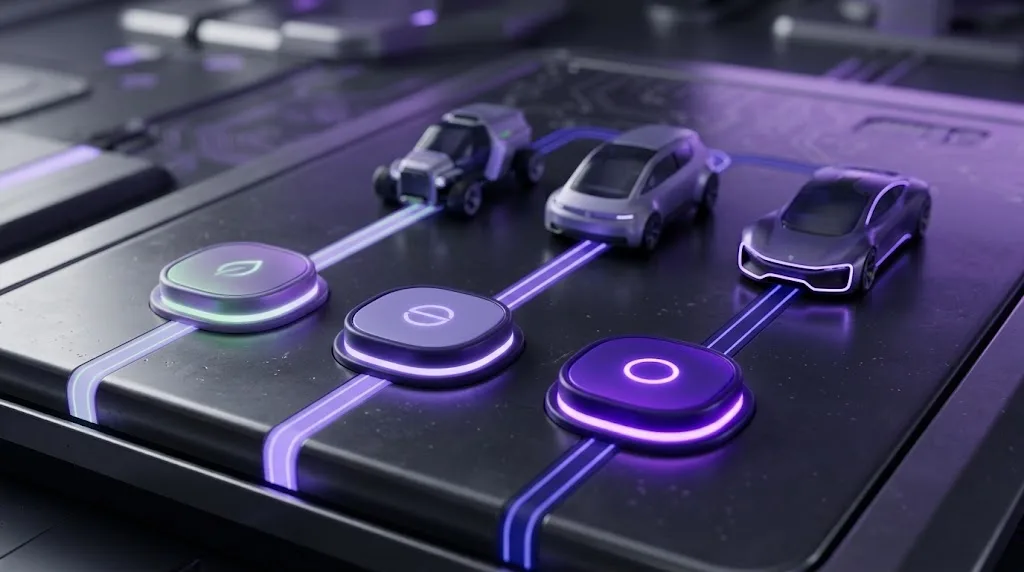
Auto model selection in Lexika picks an AI model for you, so you don’t have to choose between GPT, Claude, Gemini and the rest before every message. You pick one of three modes (Eco, Balanced or Premium) to tell Auto what matters most to you. You can still choose a specific model yourself at any time. This guide explains what Auto does, which mode suits which kind of work and how the model finder is different from Auto. It also covers when to choose a model yourself and how Auto affects the Stars you spend.
Last updated: October 2026
What Auto Model Selection Does
Lexika includes models from OpenAI, Anthropic, Google, xAI, DeepSeek, Moonshot, Perplexity, Meta and more. Having that choice is useful, but it also means making a decision before every chat. With Auto, you just write your message and Auto chooses a model to answer it. [LEXIKA TEAM TO CONFIRM: whether Auto chooses per message or per conversation, and which signals it uses]
Auto model selection is Lexika’s version of what the industry calls AI model routing. Other tools may call it smart routing or an LLM router. The idea is a layer that sends each request to a model that suits it, instead of sending everything to the largest model. Research such as RouteLLM found that sending easier questions to cheaper models can lower costs while keeping quality close to a top model on many tasks. In Lexika, the feature is simply called Auto.
Every model in Lexika reads the same Brain, so your project memory applies whichever model Auto chooses. Say you’ve told your Brain, “Remember that client reports go out in English with an Arabic summary.” That instruction still applies whether the reply comes from a lighter model or a premium one.
Auto also has limits worth knowing:
- It doesn’t make any model know more. Knowledge cutoffs and model limits still apply.
- It isn’t guaranteed to choose the model you would have chosen for a specialized task.
- It doesn’t lock you in. You can switch to a specific model whenever you like.
Eco, Balanced and Premium: Which Mode When?
The three modes tell Auto what to prioritize. As the names suggest, Eco leans toward lighter, lower-cost models and Premium leans toward the most capable ones. Balanced sits between the two. [LEXIKA TEAM TO CONFIRM: exact selection logic and model pool for each mode]
| Mode | Leans toward | Good for |
|---|---|---|
| Eco | Lower Star cost per message | Translating a short message between Arabic and English, fixing grammar, summarizing an email, brainstorming titles |
| Balanced | A mix of cost and capability | Drafting reports, explaining a lecture topic, everyday research and writing |
| Premium | The most capable models | Multi-step math, debugging code, reviewing a long contract, checking VAT calculations across a batch of invoices |
Some simple guidance:
- If you’re not sure, start with Balanced. It covers most everyday work.
- Use Eco for batches of routine tasks, where speed and cost matter more than depth.
- Use Premium for a session of hard or high-stakes problems, then switch back. [LEXIKA TEAM TO CONFIRM: whether the mode can be changed mid-conversation]
Tip: Choose the mode for each work session, not once for good. A morning of short emails and a late-night debugging session need different modes.

How the Model Finder Picks a Model
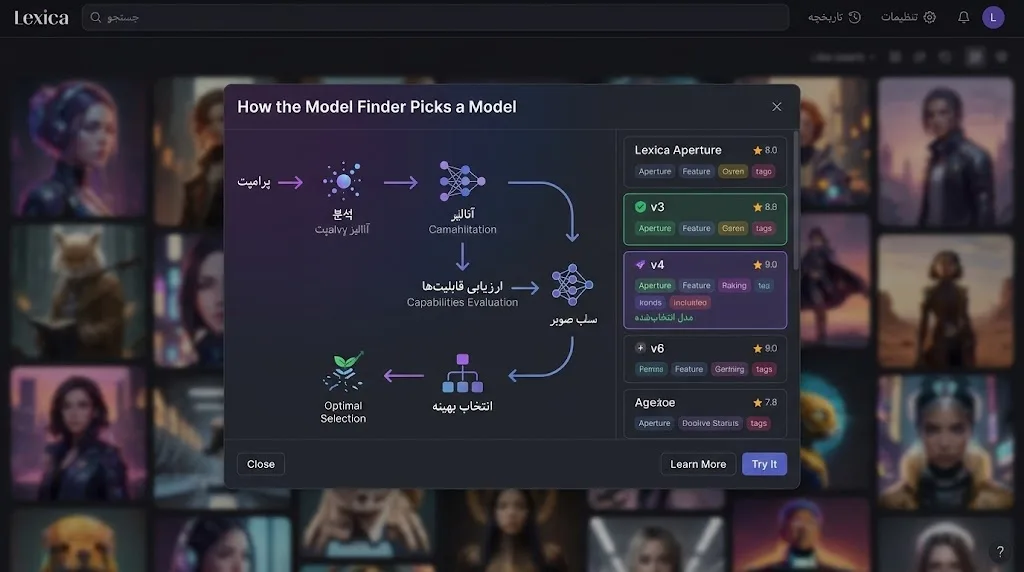
Auto and the model finder solve the same problem in different ways. Auto chooses for you as you work. The model finder asks you three questions about your task and suggests a model, which you then use directly. [LEXIKA TEAM TO CONFIRM: the three questions and how the finder ranks models]
| Auto | Model finder | |
|---|---|---|
| Who decides | Auto, based on your chosen mode | You, guided by a suggestion |
| When | As you chat | Once, before you start |
| Best for | Mixed, everyday work | A recurring task where you want one model you trust |
Once you have a suggestion, the model gallery helps you check it. Each model has a spec sheet with its knowledge cutoff, reasoning support and benchmark scores published by Artificial Analysis.
The knowledge cutoff is the date the model’s training data ends. A model with a 2025 cutoff, for example, won’t know about events from 2026 unless it can search. Reasoning support means the model can work through a problem step by step before it answers.
To see what it recommends for your own work, try the model finder. Answer its three questions, then compare the suggestion with what Auto chooses for the same prompt.
When to Pick a Model Yourself
Auto is a sensible default, but choosing a model yourself is better in some situations:
- You need consistency. For a long document or a series of client deliverables, using one model keeps the tone and structure steady.
- You’ve already tested a model on your work. Maybe its Arabic suits your clients or its code style matches your team’s.
- You need a specific capability, such as reasoning support or a recent knowledge cutoff.
- You want a second opinion. You can @mention another model and ask it the same question.
- You want strict cost control and prefer to choose a light model knowingly.
You can switch mid-conversation from the model selector or with an @mention, and your project context stays. For a step-by-step method of comparing options, read our guide on how to choose the right AI model.
Auto and Stars: How It Affects Cost
Usage in Lexika is paid in Stars, and heavier models cost more Stars per message. So the model that answers determines how far your Stars go. For a full breakdown, see how stars work.
Your mode is the main way to control this with Auto. Eco leans toward lighter models, so it should make your Stars last longer. Premium leans toward heavier models, so it will use them faster. [LEXIKA TEAM TO CONFIRM: how each mode affects Star cost, and whether the Star cost of each reply is shown]
A few habits help:
- Make Eco or Balanced your default, and switch to Premium only for problems that need it.
- Don’t regenerate the same answer over and over in Premium. Rewrite the prompt instead.
- Save stable instructions in a Brain so you don’t keep pasting long background text.
- If you run low before your plan renews, top up with a star package.
If cost is your top priority, our roundup of the cheapest AI models compares low-cost options you can choose directly.
Note: Auto model selection balances cost and capability. It doesn’t guarantee the cheapest reply or the best possible reply for every message.
FAQ
Is Auto the same as smart routing?
Auto is Lexika’s name for its automatic model selection. In the wider industry, the same general idea goes by names like AI model routing, smart routing or an LLM router: a layer that sends each request to a model that suits it. In Lexika, you choose one of three modes, Eco, Balanced or Premium, to tell Auto whether to prioritize cost, capability or a mix.
Does Auto use my Brain and project context?
Yes. Every model in Lexika reads the same Brain, so whichever model Auto chooses can use the memories you’ve saved for that project. Your project context also stays when you switch models mid-conversation. You don’t have to repeat your instructions when a different model answers.
Which Auto mode is best on a tight budget?
Eco is the natural choice for most everyday tasks on a budget, such as summaries, grammar fixes, short translations and quick explanations. Switch to Balanced or Premium only for hard problems, like multi-step math or exam revision that needs careful reasoning. Saving stable instructions in a Brain also saves Stars, because you won’t keep pasting long background text.
Can I override Auto in the middle of a conversation?
Yes. You can pick a specific model from the model selector or call one with an @mention, and your project context carries over. This is useful when you want a second opinion or a model whose style you prefer. You can also use the model gallery to check a model’s knowledge cutoff, reasoning support and benchmark scores first.
Does Premium mode always give better answers?
Not always. For simple tasks like rewriting a sentence or translating a short message, a lighter model often gives an equally good answer, faster and for fewer Stars. Premium helps most with complex, multi-step or high-stakes work. Using it for everything mostly means using up your Stars faster without better results.
Key takeaways
Auto model selection means you don’t have to choose a model before every message. You decide how it balances cost and capability, and you can take control whenever you want.
- Auto chooses a model for you, and every model reads the same Brain.
- Use Eco for routine tasks, Balanced for everyday work and Premium for hard problems.
- Use the model finder and gallery when you want one model you trust for a recurring task.
- Heavier models cost more Stars, so your mode affects how far your plan goes.
If you’d rather not juggle three subscriptions and guess which model fits each message, you can let Auto choose or see models and scores and pick one yourself, all in one workspace, with a 7-day free Pro trial.
سؤالات متداول
What is auto model selection in Lexika?
Auto model selection is Lexika's built-in feature that automatically picks the most suitable AI model for each message based on your chosen mode (Eco, Balanced, or Premium), saving you from manually deciding before every chat.
How do Eco, Balanced, and Premium modes differ?
Eco leans toward lighter, lower-cost models for routine tasks; Balanced provides a mix of cost and capability for everyday work; and Premium routes your messages to the most capable models for complex problem-solving and deep analysis.
Can I switch from Auto to a specific model manually?
Yes, you can override auto model selection at any time by choosing a specific model yourself from the model selector or by using an @mention while keeping your project context intact.